Setup guide
Connect Home Assistant to Verdant.
Verdant reads the sensors you already trust and turns them into grow history — time in range, drift, and recovery against the stage each plant is actually in. Setup takes about five minutes and needs one token.
Verdant talks to Home Assistant directly on your own network. The connection is optional, and everything you log works without it.
Before you start
A running Home Assistant
Any recent version, reachable from your phone on the same network.
At least one climate sensor
Temperature and humidity in the tent. Anything else is a bonus.
A grow space in Verdant
Sensors attach to a space, so create the tent or room first.
In Home Assistant
Create a long-lived access token
Verdant reads from Home Assistant using a token you generate yourself. Open your Home Assistant profile, scroll to the bottom, and create a new long-lived access token.
- Click your user name in the Home Assistant sidebar.
- Open the Security tab and scroll to Long-lived access tokens.
- Choose Create token, name it Verdant, and copy the value.
Home Assistant shows the token exactly once. Copy it before closing the dialog — if you lose it, delete the token and create another.
In Verdant
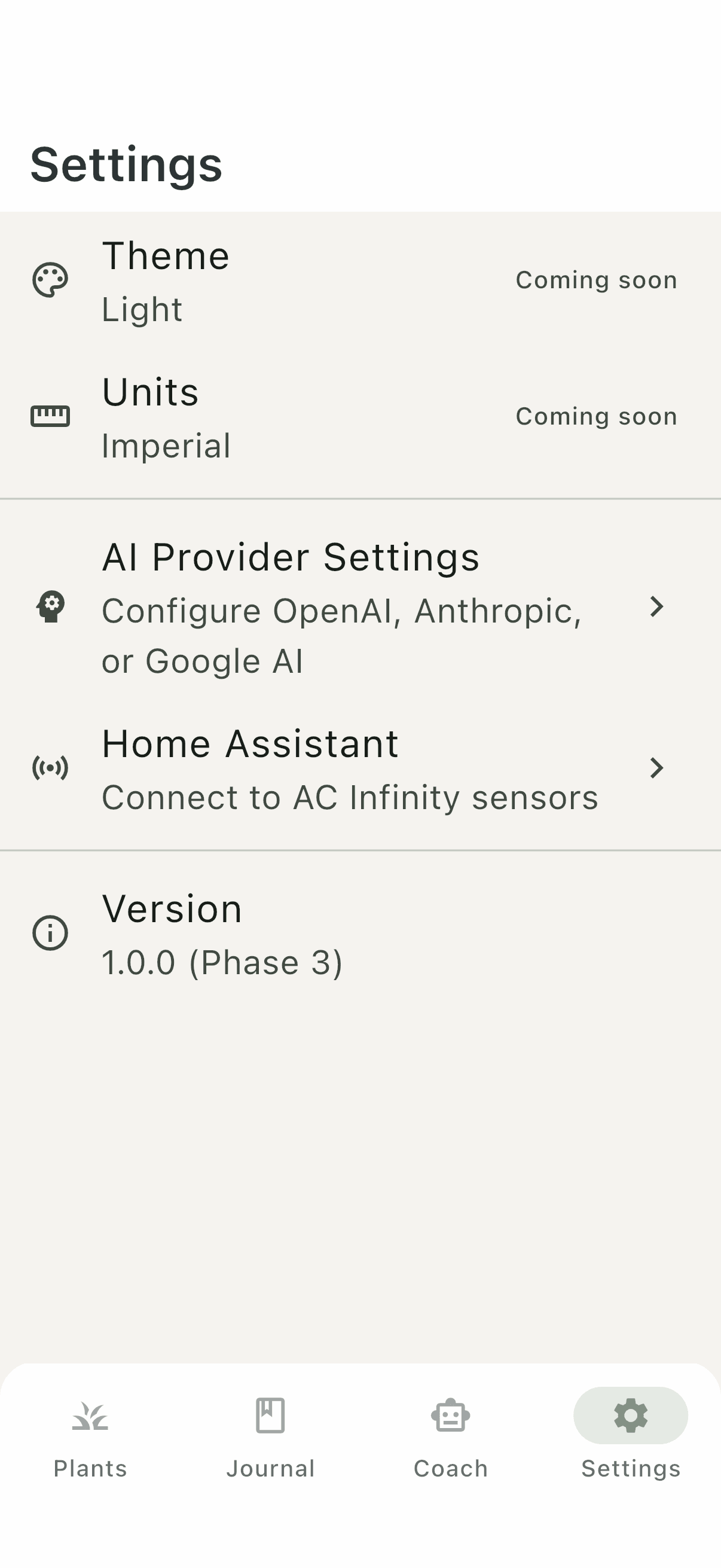
Open Home Assistant settings
Go to Settings and choose Home Assistant. This is where the connection lives; nothing here is required to use the rest of the app.
In Verdant
Enter your URL and token
Fill in Home URL with the address you use on your own network, then paste the token into Long-Lived Access Token.
- Home URL — for example http://homeassistant.local:8123
- Long-Lived Access Token — the value you copied in step 1
- Connection Timeout — leave at 5 seconds unless your network is slow
Use a hostname rather than a bare IP address where you can. Hostnames survive a router handing out a different address later.
In Verdant
Test the connection
Tap Test Home URL. A successful test means Verdant reached Home Assistant and the token was accepted. Save once it passes.
Save first
Save before you go near a grow space. A successful test does not store anything — until you tap Save, Verdant has no token on file. The sensor picker reads the saved token when it opens, so an unsaved connection shows an empty entity list that looks exactly like a Home Assistant with no sensors. If you already opened the grow space, save here and then reopen it.
If the test fails, check that your phone is on the same network as Home Assistant and that the URL includes the port — usually :8123.
In Verdant
Map sensors to a grow space
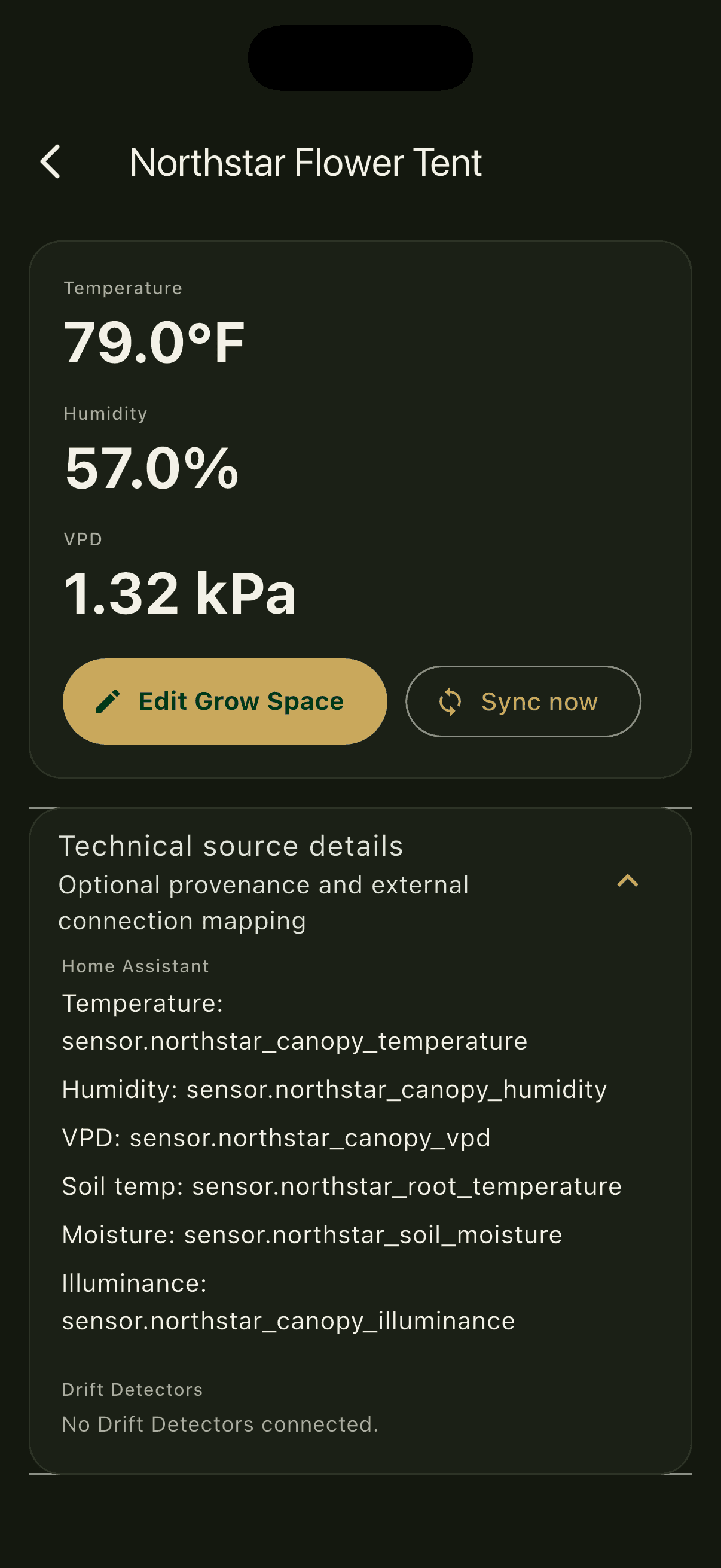
A grow space is the tent or room your plants share. Open it, choose Edit Grow Space, and pick which Home Assistant entity feeds each measurement.
- Temperature — your canopy-level temperature sensor
- Humidity — the matching relative humidity sensor
- Optionally soil temperature, moisture, EC, and illuminance
Leave VPD unmapped. Verdant calculates VPD from temperature and humidity itself, so a sensor reporting different units cannot skew it.
In Verdant
Confirm readings are arriving
Back on the grow space you should see live temperature, humidity, and a derived VPD. Tap Sync now if you would rather not wait for the next poll.
Verdant polls on the interval you set — every 10 minutes by default — and marks a reading stale if the feed goes quiet for longer than your stale threshold.
When it is working
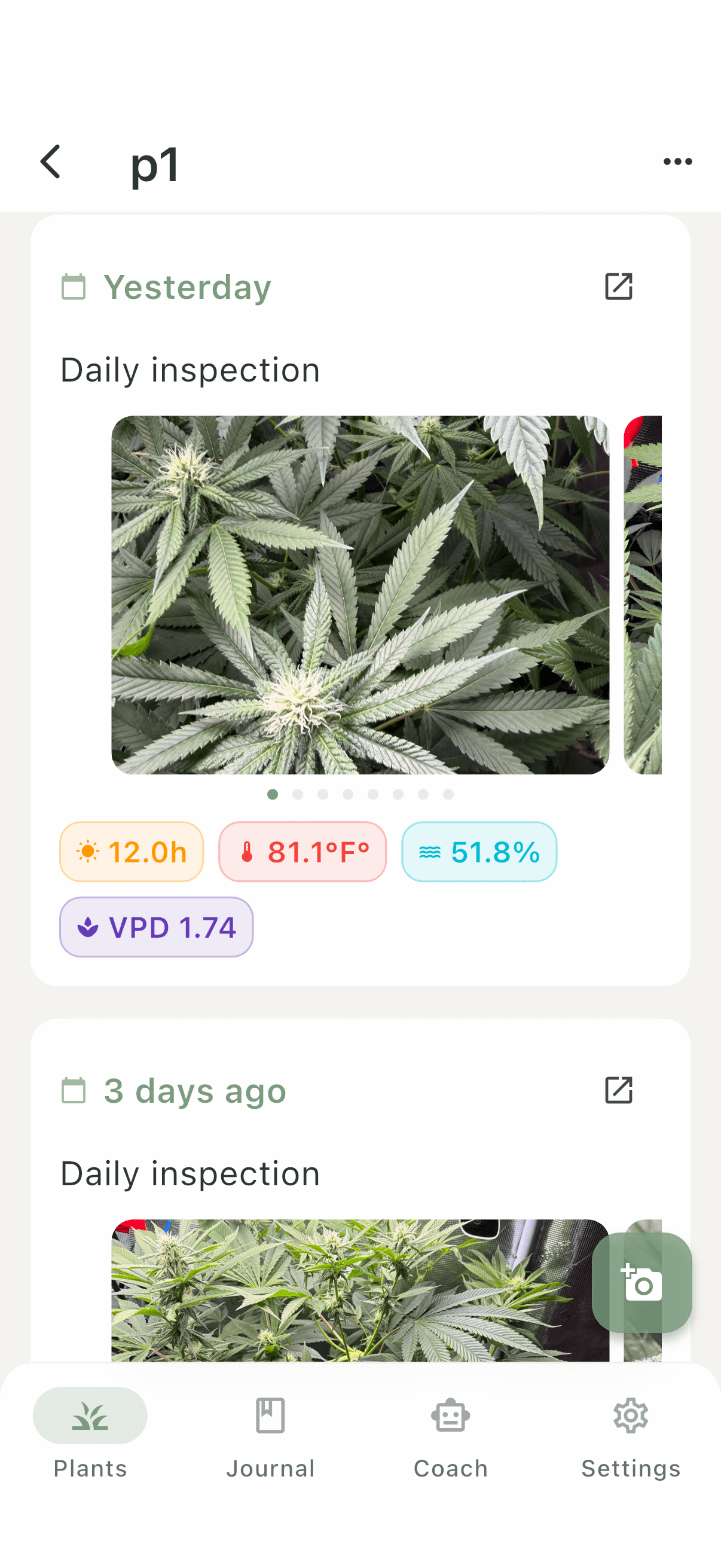
Readings arrive on the grow space, and journal entries carry them.
The grow space shows live temperature, humidity, and a VPD Verdant derives itself. Every entry you log from then on is stamped with the conditions at that moment, so the photo and the environment stay attached to each other.
If something is off
Four things that usually explain it.
The connection test fails
Almost always the URL. Confirm the port is included, that you can open the same address in your phone’s browser, and that the phone is on your home network rather than cellular.
A sensor shows an impossible value
Some integrations publish placeholder numbers when a device is offline — a temperature of −557°F, for example. Unmap that entity and pick one that reports while the device is idle.
Readings stop after a while
Check the token still exists in Home Assistant. Deleting a token, or restoring Home Assistant from a backup made before you created it, quietly revokes access.
VPD looks wrong
If you mapped a VPD entity directly, unmap it. Home Assistant integrations report VPD in different units; Verdant derives it consistently from temperature and humidity.
Sensors connected. Now the history starts building.
See what Verdant does with the readings once they are flowing.